

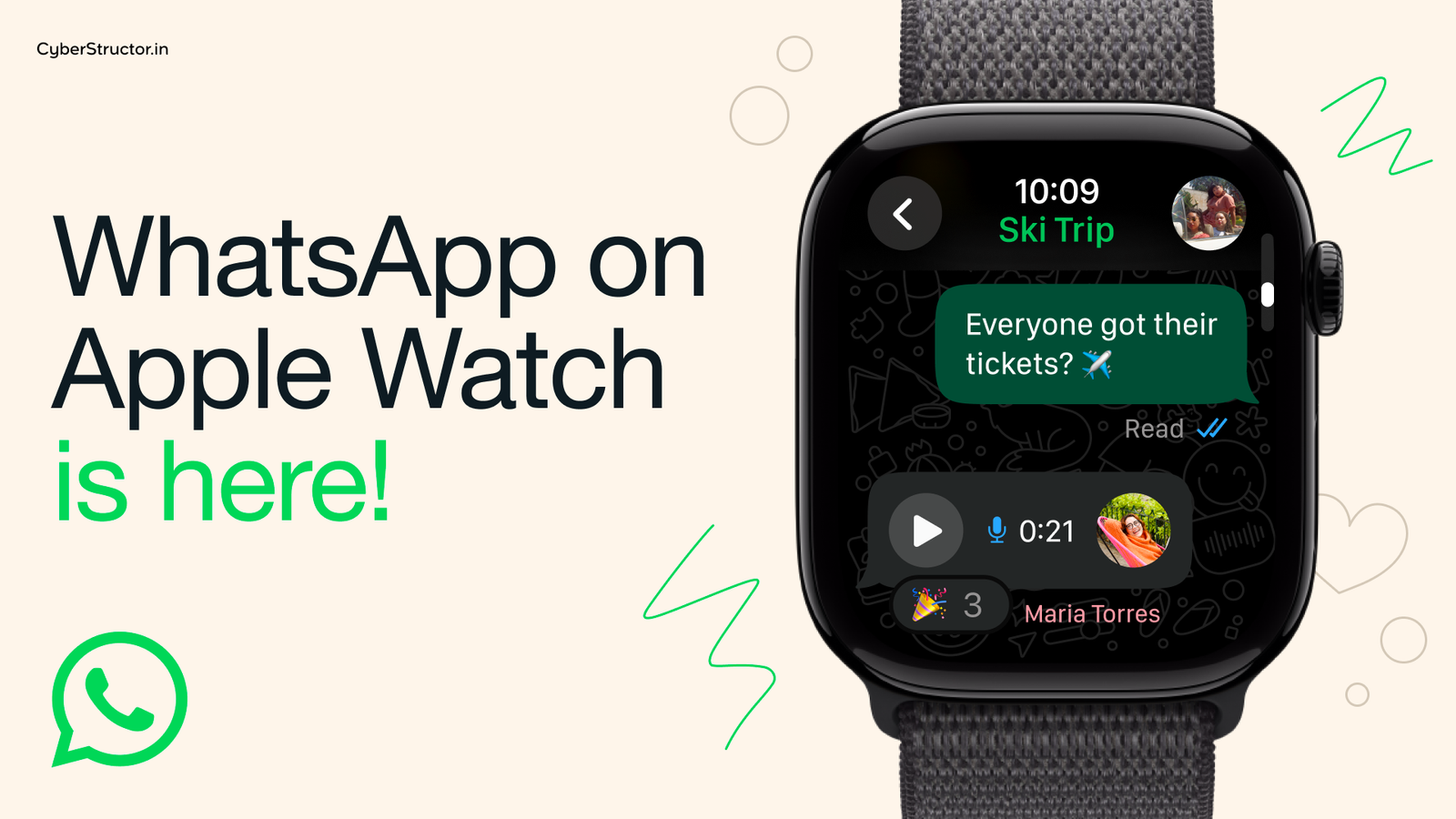
After nearly a decade of waiting, WhatsApp has officially arrived on the Apple Watch. It’s a huge relief for millions of users who have wanted a proper WhatsApp experience on their wrists — no more half-baked workarounds or unreliable third-party apps.
But while this new update finally fixes years of frustration, it’s not the full revolution many of us hoped for.
Goodbye Workarounds: The Old WhatsApp Experience on Watch
Before now, using WhatsApp on the Apple Watch was… honestly painful.
You could only reply to notifications. That’s it. Once you dismissed one, the chat was gone forever. No chat list, no history, no media.
Here’s what used to frustrate users the most:
- No chat history – You couldn’t view old messages.
- Blurry media – Photos and stickers looked pixelated or didn’t load.
- No voice messages – You couldn’t send or listen to them.
- Missed WhatsApp calls – The watch wouldn’t even alert you.
Because of these gaps, people started paying for unreliable third-party apps that mimicked WhatsApp on the watch — usually buggy, slow, and risky for privacy.
What’s New: Finally, a Real WhatsApp App
The new official WhatsApp app for watchOS 10 changes everything. It finally brings WhatsApp to your wrist in a proper, usable form.
Here’s what you can do now:
- See your chats anytime – You can now open WhatsApp and scroll through your full chat list. No need to wait for notifications.
- Send and receive voice notes – Record voice messages using your watch mic or listen to ones your friends send.
- View images and stickers clearly – No more blurry previews. Media now loads properly on the Apple Watch.
- Start new messages – You can compose and send new chats — though currently, only to contacts you’ve messaged before.
This is the biggest leap WhatsApp has ever made for Apple Watch users.
The Catch: It’s Still a “Companion” App
Here’s the part that’s disappointing — this new app isn’t fully independent.
It’s what Meta calls a “companion app.” That means it still needs your iPhone nearby and connected to work.
So, if you have a cellular Apple Watch and hoped to leave your phone at home while still using WhatsApp — sorry, that dream isn’t here yet.
It’s surprising because WhatsApp’s desktop version already works without your phone. Why not the watch?
The Second Limitation: Calls
You can now see incoming WhatsApp call notifications on your watch — which is great news. But you can’t answer or make calls directly from it yet.
This feels especially odd because WhatsApp’s Wear OS (Android watch) version already supports voice and video calls.
So for now, Apple Watch users still have to reach for their iPhones when a WhatsApp call comes in.
A Great Start — But Just Step One
Despite the limitations, this launch is a huge milestone. It finally gives Apple Watch users a proper, reliable WhatsApp experience after nearly ten years.
It’s not perfect, but it’s progress. Meta has laid the foundation for what could become a fully standalone WhatsApp app in the future — one that works without your iPhone and supports full calling.
For now, this is WhatsApp’s v1.0 for Apple Watch — a solid, functional start that makes your wrist a little smarter.
Final Thoughts
WhatsApp on Apple Watch is finally here — and it’s good. Not flawless, not complete, but definitely a long-awaited fix to years of frustration.
This isn’t the revolution. It’s the foundation of one.
FAQs – WhatsApp on Apple Watch
1. Can I use WhatsApp on Apple Watch without my iPhone?
Nope. This fresh WhatsApp version runs alongside your phone, meaning your iPhone’s gotta stay close and online to keep things going.
2. Can I make or answer WhatsApp calls from Apple Watch?
no. You’ll get alerts when someone rings, yet calling back – or starting a new chat – won’t work straight from the device.
3. Can I send and listen to voice messages on Apple Watch?
Yep – talk into your watch anytime, then hit play later… finally does what folks wanted ages ago.
4. Can I view my WhatsApp chats and media on Apple Watch?
Right now you’re able to check out past messages fully plus see pics and stickers sharp – way better than how it used to be.
5. How do I install WhatsApp on my Apple Watch?
Grab the newest update for your iPhone along with your Apple Watch, fire up the Watch app once that’s done, hunt down WhatsApp inside it, switch on “Show App on Apple Watch” when you get there



Leave a Reply